What is in this guide
- Start with meals you already cook
- Step 1: Give every ingredient one consistent name and unit
- Step 2: Put this week’s batch counts in Plan
- Step 3: Link the recipe library to the plan
- Step 4: Combine ingredients in Shop
- Step 5: Recheck stock and add the rest of the household shop
- Fix missing items before expanding the library
Build a meal plan shopping list system by saving each meal’s ingredients once, linking them to the number of batches you plan to cook, and combining matching ingredients. A spreadsheet can calculate the quantities automatically; you still need to check pantry stock, add non-dinner items and choose pack sizes before shopping.
The setup below uses Google Sheets formulas and three tabs: Plan, Recipes and Shop. It is a suggested structure to build yourself, with no recipe-import service or supermarket connection required.
Start with meals you already cook
Choose two familiar recipes for the first version. Record what one batch makes so you know whether you need half, one or two batches for your household. Use the ingredient quantities from those recipes, including oil, seasonings, sauces and any sides you intend to serve.
The trade-off is the initial data entry. Each new recipe needs recording, but its ingredient rows can then stay in the library for later weeks.
If choosing dinners is still the sticking point, start with the weekly meal plan method. This system begins after that decision.
Step 1: Give every ingredient one consistent name and unit
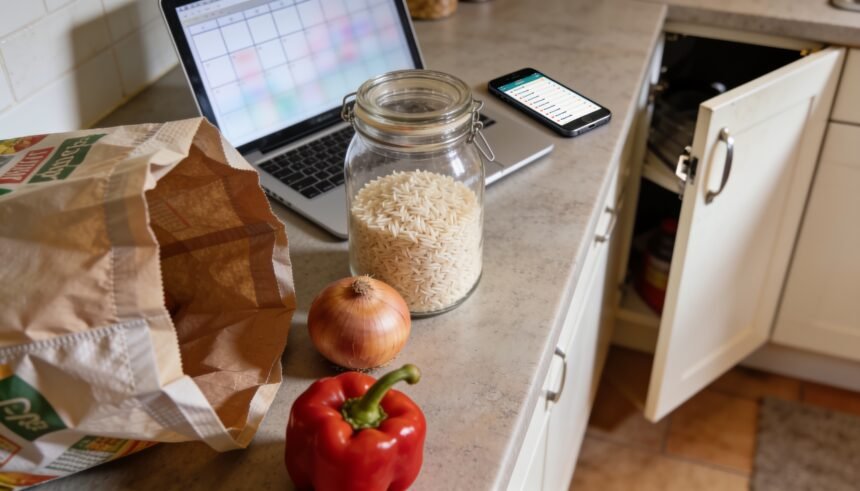
Use a single shopping label for each ingredient, with its unit included. Examples are Onion (each), Dry rice (g) and Milk (mL). Copy these labels wherever they recur rather than typing variations.
Keep genuinely different items separate. Tinned tomatoes and fresh tomatoes need different rows, as do dry lentils and tinned lentils. If you count tins, include the tin size in the label. Do not add a drained weight to a weight that includes liquid.
Use numbers alone in quantity cells: put 250 in the cell, with g already in the ingredient label. Convert kilograms to grams before entering them. For an ingredient measured by count, keep using count rather than switching between weight and count across recipes.
Step 2: Put this week’s batch counts in Plan
Create a tab named Plan. Put Meal in A1 and Batches in B1. Enter each selected meal below, using exactly the same name you will use in Recipes.
For example, Tomato pasta with 1 means one batch of your saved recipe. Enter 2 if you intend to cook two batches. Repeated rows for the same meal will be added together.
Count cooking once. If one double batch supplies two planned dinners, record two batches for the cooking session and do not add those ingredients again for the second dinner. This is a shopping calculation, not guidance on storing the cooked food.
At the next shop, replace the old Plan entries rather than appending a new week underneath them.
Step 3: Link the recipe library to the plan
Create a tab named Recipes with these headings across row 1:
| Column | Heading | What to enter |
|---|---|---|
| A | Meal | Exact meal name from Plan |
| B | Ingredient | Consistent label, including unit |
| C | Per batch | Numeric quantity for one batch |
| D | Planned batches | Formula below |
| E | Needed | Formula below |
Give each ingredient its own row. Repeat the meal name on every ingredient row belonging to that recipe. Keep unselected recipes here too.
In D2 enter =SUMIF(Plan!A$2:A,A2,Plan!B$2:B).
In E2 enter =C2*D2.
Copy both formulas down to every populated recipe row. D looks up the meal’s total batch count; E multiplies that count by the ingredient quantity. A recipe absent from Plan contributes zero. Google documents SUMIF as a conditional sum, which is the matching operation used here.
Step 4: Combine ingredients in Shop
Create a tab named Shop. Put Ingredient, Total needed, Already have and To buy in A1 to D1.
In column A, enter each distinct ingredient label from Recipes once. Keep this as your master ingredient list, adding a row whenever a new recipe introduces a new ingredient. This setup automates quantities; it does not create new ingredient labels for you.
In B2 enter =SUMIF(Recipes!B$2:B,A2,Recipes!E$2:E).
Enter the quantity already available for this plan in C2, or 0 if none is available. In D2 enter =MAX(0,B2-C2).
Copy the formulas down every ingredient row. SUMIF combines the matching recipe quantities; MAX keeps the amount to buy at zero when stock exceeds need. Read only rows with a positive To buy quantity when shopping.
Check the arithmetic with an example
These are illustrative ingredient lines, not complete recipes or portion recommendations. Assume one batch of each example meal:
| Ingredient | Tomato pasta needs | Bean rice needs | Total needed | Already have | To buy |
|---|---|---|---|---|---|
| Onion (each) | 1 | 2 | 3 | 1 | 2 |
| Capsicum (each) | 1 | 1 | 2 | 0 | 2 |
| Dry rice (g) | 0 | 300 | 300 | 125 | 175 |
If Bean rice changes to two batches, the onion total becomes five and the amount to buy becomes four. Rice needed becomes 600 g; after subtracting the same 125 g, the shortfall is 475 g.
That shortfall is an ingredient requirement. Choose the actual pack size separately, after checking what is available at the shop.
Step 5: Recheck stock and add the rest of the household shop
NSW Love Food Hate Waste recommends checking fridge and pantry stock before making a list that matches your meal plan. Refresh the Already have column for each shop. Do not carry last week’s stock figures forward unchecked.
Count only stock available for the meals in this plan. If some rice is reserved for another purpose, leave that portion out of the deduction.
Keep breakfast, lunchbox, snack and household extras in a separate section below the calculated list. Combine any duplicates before shopping: milk for a recipe and milk for breakfast must both be covered, with existing milk deducted only once.
Group the finished list by your shop’s sections, such as produce, chilled food, pantry and household items. Share one current copy with whoever shops, including any required ingredient form or substitution limits. Recheck it after changing a meal.
Fix missing items before expanding the library
- A selected meal shows zero: check its spelling in Plan and Recipes, and confirm the batch count is a number.
- An ingredient is missing: add its exact label to Shop and copy the formulas into that row.
- The total looks too high: check for duplicate recipe rows or a second entry for a dinner supplied by an existing batch.
- The list still includes a cancelled meal: remove its Plan entry or set its batch count to zero.
- The quantity looks implausible: check that every matching row uses the same unit and ingredient form.
For a four-week dinner rotation, keep the recipe library and change the Plan entries for the selected week. The stock check still belongs to the current shop.
Start with two meals that share an ingredient. Change one batch count and check that the combined total follows it before entering the rest of your recipes.
Related reading: How to Meal Plan When You Hate Cooking.
The one-page family week
One printable page that holds the whole week: meals, school, activities and who is doing the pickup. Free, and we send one useful email a week.
One email a week. No spam, unsubscribe in a click.